Showing posts with label windows. Show all posts

Friday, September 30, 2016

6 Secret Tips and Tricks for Google Chrome in Windows

Earlier this year Google Chrome was revealed to be the most popular web browser in the world according to stat-counting website, NetMarketShare. The accolade is well-deserved, as Chrome is the fastest and most tweakable browser out there, supporting thousands of extensions and being supported by constant updates.
With such a wealth of options buried under its glossy hood, Chrome has plenty of hidden features and tricks that can make your life easier. Here are six you might not have heard about.
If Windows is the beating heart of our personal lives, then our web browsers are the soul, reflecting every topic, concern and interest that engages us, and showing the exact times and order in which we took interest in them. It’s natural that we’d want to protect this personal space with a password.


To do this:
1. Type chrome://flags/#enable-new-profile-management into your Chrome URL bar, scroll down to “New profile management system” and enable it from the drop-down.
2. Click the blue “Relaunch Now” button at the bottom of the page.
3. Click the menu icon at the top right of Chrome, “Settings -> People -> Add person.”
4. Enter a name for the guest account, select “Control and view the websites this person visits,” then “Add.”
5. Click your account name to the left of the minimize button in Chrome, then “Exit and childlock.”
6. Your browser is now locked, and each time you open Chrome, you’ll need to enter your Google password to access it. (You’ll also need to close Chrome using the “Exit and childlock” method each time.)
Chrome can slow to a crawl if you’re not careful, and this is usually because you have too many extensions open, or some of your extensions are being greedy with memory (which could be a result of them being badly designed, causing too much strain on you computer).
Thankfully, just like you have a Task Manager in Windows to monitor which processes and programs are using the most memory, you have one in Chrome.


1. Click the menu icon -> More tools -> Task manager.
2. Click memory at the top to sort all the processes in Chrome in order of how much memory they’re using. To close one, click it, then click “End process” at the bottom right.
This is a simple but good little tip. You probably know by now that you can create new Chrome windows by dragging open tabs onto empty spaces of your desktop. (If you didn’t, then that’s a bonus tip for you!)
But if you have an excess of tabs open in one window, then you can drag several of them over into a new window at the same time. Just hold “Ctrl + Windows Key,” click all the tabs you want to move to a new window, then drag them wherever you like.
Most of us need to repeatedly enter our address and credit card details into various sites at least several times a week. You may have noticed that Chrome’s offered to save these details of yours so you don’t need to enter them each time, but do you know where you can manage your saved addresses and card details?
1. Click the Chrome menu icon -> Settings -> Show advanced settings -> Manage autofill settings (under “Passwords and forms”).
2. Here you can manage all your autofill addresses and card details. To delete an entry, hover over it with your mouse, and click the cross icon on the right side.


And we’re back to passwords again. (They are pretty important, after all!) Using Chrome’s built-in password generator, you can get Chrome to generate secure, random passwords each time you create a new one. Chrome then saves the password and reminds you of it each time you log into that site.


To do this:
1. Type chrome://flags, then scroll down to “Password generation.”
2. Select “Enable” in the drop-down menu, click “Relaunch Now” at the bottom, then the next time you want to create a new password, Chrome will suggest a random one for you.
This is a personal favorite of mine. If disaster strikes and your Internet goes down, then you may have noticed that on the page saying “Unable to connect to the Internet,” there’s a little T-Rex on the screen. Press space, and it launches into an infinity-runner mini-game where you jump to avoid obstacles! Who needs Internet when you have a jumping T-Rex?

 Conclusion

As you can see, Chrome has a ton of options, fully justifying its status as the supreme browser. These are just some of the hundreds of fancy things you can do on Chrome, so do some of your own exploring, too. Have a look on Chrome’s “flags” page and see what you can find – but remember that some of the features here are still in testing so might be buggy.

How to Remove a Stubborn Program in Windows That Just Won’t Leave

There are many reasons why a Windows program may not be uninstalling. It may have a virus, it could be directly connected to the Windows system or the program itself may be dodgy. You can try a bunch of solutions to uninstall a Windows program that isn’t uninstalling, and in this article we will try to list the most common ones.


Note: We will provide solutions to uninstall a third-party Windows program. These instructions will not apply to individual files that refuse to be deleted, such as pagefile.sys. Additionally, Windows built-in apps cannot be uninstalled the usual way; you will have to uninstall them from the Powershell.

Make sure there is no way to uninstall the program using the usual “Uninstall a program” section in the control panel. Some programs are dodgy and may ask tricky questions when you try to uninstall them. In most cases there will be a tiny button saying “Uninstall” or “Uninstall anyway;” check each corner of the uninstaller to find such button.
If not found, then try to answer the question the uninstaller is asking. It may be asking you to provide feedback or confirm that you don’t want to repair the program instead. You should get an option to uninstall the program afterwards.
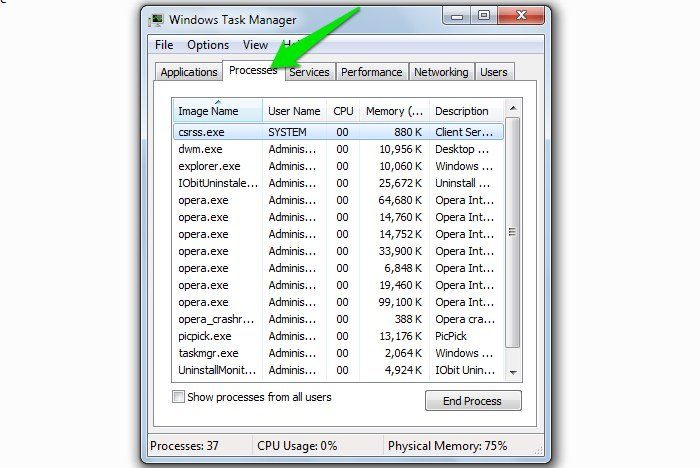
If the program is currently running in Windows, then you may not be able to uninstall it until it is closed. Check the taskbar and system tray at the end of the taskbar to ensure the program is currently not running. Furthermore, the program may have some background processes running, as some programs have a bad habit of running in the background. Press the “Ctrl + Shift + Esc” keys to open Windows Task Manager and move to the “Processes” tab. Make sure there are no processes for the program running.

Safe Mode is your best bet for solving most Windows problems, including a program not uninstalling. Safe Mode starts Windows with only the necessary system files and drivers, giving you a safe place to fix problems. There are many ways to access Safe Mode, and once you are inside you can uninstall the program like you do in the normal mode.
If there was a specific system file or malware stopping the program from being uninstalled, then you should be able to uninstall it in Safe Mode. In case the problem persists, then try scanning your system with an antivirus program to get rid of any malware. Your antivirus program may not work in Safe Mode. If it’s not working, then you can create a Avast Rescue Disk to scan using a USB drive. After the scan, try uninstalling the program again.
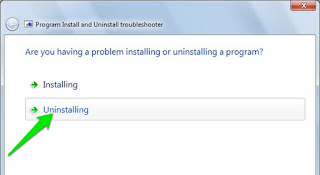
Microsoft offers an Install and Uninstall Troubleshooter to automatically solve installing and uninstall issues. Download the tool and launch it. It will ask you whether you are having installing issues or uninstalling issues. Click on “Uninstalling,” and it will automatically try to detect and solve the problem.


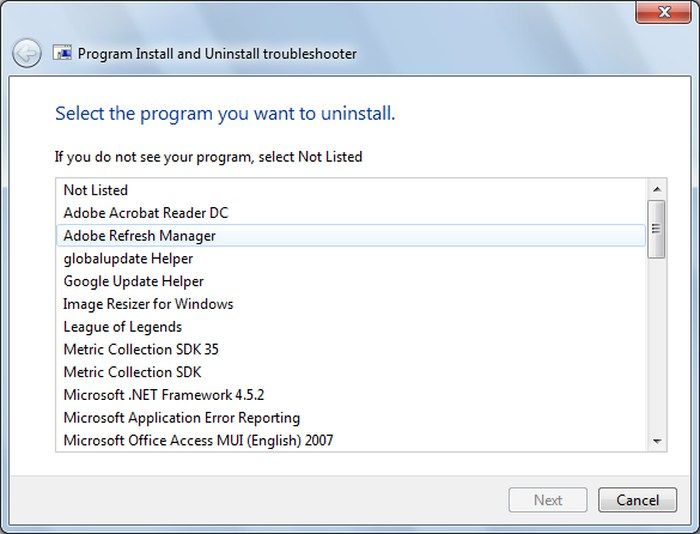
 If it fails to fix the problem, it will list all the apps in your system. Look for the culprit app and select it. After that the wizard will try to solve issues with that specific program. If it is fixed, you can try uninstalling the program again.


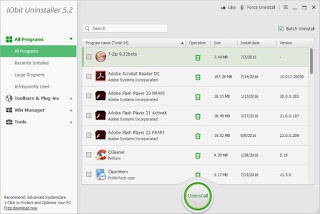
If Windows can’t uninstall, then a third-party uninstaller may be able to uninstall the program. For this purpose I personally use and recommend the free IObit Uninstaller, although there are many other uninstallers for Windows available as well. The program will give you list of all the programs installed in your PC; you can select and click on “Uninstall” to start the process. If the program in question isn’t in the list, then you can also drag and drop its shortcut into the interface to start the uninstallation process.


 First, the uninstaller will try to uninstall the program using the built-in uninstaller. If unsuccessful, it will try to repair it and then try to uninstall it. If it still fails, it will allow you to manually delete all the content of the program from your system, including program data in the system drive and entries in the Registry.


Make sure you choose a restore date that is before the time when the culprit program was added. It may delete some other newly added data as well, but it’s a good option if nothing is working. However, if the program in question is too old, then the Restore option may not work.
After going through all of the above steps, the program is most probably uninstalled or at least all of its data is deleted. I also recommend switching to a third-party uninstaller, as they are better at handling the uninstallation process and deleting residual files that Windows’ built-in uninstaller always leaves.
If for some reason the stubborn program is still not uninstalling, then let us know in the comments what error you are getting; we may be able to help.


How to Pause and Resume a Windows Update Download in Windows 10

Windows 10 has a lot of changes and one of them is how Windows downloads and installs the Windows updates. In Windows 7 you can control when Windows can download and install the updates. In fact, you can even disable Windows updates completely. However, in Windows 10 the choice for you is pretty limited. You cannot control when Windows 10 will download the updates, but you can make Windows 10 install those updates outside of the active hours. Of course, this makes sure that all the users are up to date, and Microsoft doesn’t have to worry about releasing major updates or features.
Typically, Windows updates range anywhere from a few megabytes to a few hundred megabytes. If you have a decent Internet connection then downloading these updates is not a problem. However, if you have a poor or limited Internet connection, downloading these updates can be a hassle. Windows tends to take up all the speed, and your general browsing experience will be degraded. To make things worse, there is no straightforward option to temporarily pause the downloads like in Windows 7.
So, if you are ever in a pinch, here is how you can forcefully pause a Windows update in Windows 10.
As I said before, there is no straightforward way but there is a hack to pause Windows update downloads. All you have to do is stop all the Windows update services and then restart them when you are ready to download the updates.
Typically, you can stop those services from the Services tool in Windows 10. However, you can make things easier by using Command Prompt. To start, press “Win + X,” then select the option “Command Prompt (Admin).”

The above action will open the command prompt in admin mode. The first thing we need to do is stop the Windows Update service. To do that execute the below command.
net stop wuauserv
Now, stop the “Background Intelligent Transfer” service using the below command.
net stop bits
Next, stop the “Delivery Optimization” service using the below command.
net stop dosvc
The above commands will temporarily pause the Windows update downloads.


If you are ready to resume the download, simply execute the below commands one after the other.
net start wuauserv
net start bits
net start dosvc
If you do this way too often, then you can just create a simple batch script to automate most of the process. To do that, create a new text document, copy and paste the below code into it, and the save the file with the “.bat” extension. In my case, I’ve saved the file as “stopwuservice.bat.”
net stop wuauserv
net stop bits
net stop dosvc

PAUSE
To run the script, right-click on the batch file, and then select the option “Run as Administrator.”


With the above action, the commands will be executed one by one. This script is not the most elegant one, but it does get the job done.


To resume the services, create another batch script with the below commands, and then run it as administrator.
net start wuauserv
net start bits
net start dosvc

PAUSE
That’s all there is to do. It is that simple to pause and resume Windows update downloads in Windows 10.

Thursday, September 29, 2016

Windows Server 2016 OS available from mid-October

Microsoft uses Ignite conference to unveil cloud-ready server OS and containerised security for Edge browser.
Windows Server 2016 will be generally available in October, Microsoft revealed at the Ignite conference, unveiling a new partnership with Docker to provide containerisation features to customers.

The company’s new server operating system, including new multi-layer security features and a cloud-ready application platform, will aim to ease organisations’ transitions to the cloud, allowing customers to both run traditional applications and data centre infrastructure and move workloads to the cloud.
The security features include Shielded Virtual Machines, which encrypts virtual machines through BitLocker, and protections for administrator credentials.

The partnership with Docker will provide customers with access to CS Docker Engine at no extra cost, as well as enterprise support for the package.
The agreement will also see Docker and Microsoft jointly promoting Docker Datacenter to allow IT professionals to secure the software supply chain for Windows Server and manage containerised Windows Server workloads.
In a blog post on the Windows site, Erin Chapple, General Manager of Windows Server, said that the operating system had been made more flexible and cost-efficient for data centres, using software-defined compute, storage and network features.
Windows Server 2016 is now available at the TechNet Evaluation Center for customers to test the operating system. The site provides multiple download options, ISO and a Nano Server VHD, as well as the ability to evaluate in a virtual machine.
It will be on the October price list, while volume licensing customers will be able to download the fully licensed software in mid-October.
Microsoft made some other announcements at the Ignite conference, including the launch of the Windows Defender Application Guard for Microsoft Edge.
The solution uses a hardware-based container to isolate potentially harmful browser activity and prevent it from infecting the rest of the machine.
The solution will be available to Windows Insiders in the next few months and to general users next year.
Microsoft also announced that it was introducing threat intelligence sharing between WDATP and Office 365 Advanced Threat Protection and Windows Upgrade Analytics, a free service to analyse an environment’s readiness to upgrade to Windows 10.

Microsoft confirms Windows 10 adoption slowdown

Microsoft today acknowledged that the Windows 10 adoption pace had slowed when it claimed the new operating system was running on approximately 400 million devices.


What IT needs to know about iOS 10
iOS 10 offers a range of technologies that make the iPhone and
iPad even better enterprise devices and
Read Now
The company reset the Windows 10 uptake status on the same day it kicked off the 2016 edition of its Ignite conference in Atlanta.
Microsoft's last Windows 10 update was at the end of June, a month before it halted the free upgrade for consumers and small businesses running Windows 7 or Windows 8.1. Then Microsoft pegged the number of "active devices" -- a metric of those machines that ran the OS at least once in the past four weeks -- at 350 million.
The increase of 50 million over more than 12 weeks -- or about 17 million every four weeks -- was lower than during the free upgrade offer period. For example, in the eight weeks from May 5 to June 29, Microsoft claimed 50 million active users were added to the Windows 10 rolls, or 25 million every four weeks.


Other measurements of Windows 10 have agreed with Microsoft's assessment: Windows 10's growth has slowed in the last month and more.
But Microsoft's claim was in the same ballpark as Computerworld's latest calculation, which was based on Net Applications' measurement of Windows 10's user share and Microsoft's oft-cited contention that 1.5 billion machines run Windows. At the end of last month, Computerworld's estimate of in-place Windows 10 stood at 380 million systems.
Microsoft has pledged to continue updating its Windows 10 "devices served" number, even though it back-pedaled two months ago from its previous 1-billion-by-mid-2018 goal. The timetable, the company said then, was unrealistic after it bailed out of virtually all the smartphone hardware market.